Showing posts with label note. Show all posts
Showing posts with label note. Show all posts
Tuesday, November 4, 2014
Samsung Galaxy Note 2 tips and tricks
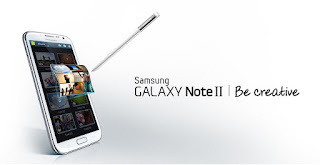
The Samsung Galaxy Note 2 is the second in Samsungs series of giant-screened mobiles. It improves the stylus, gets a sleeker look and nabs all the best bits from the Samsung Galaxy S3. Weve spent a lot of close and personal time with the phone. Here are the secrets, tips and tricks weve uncovered.
OLED-based screens like the Samsung Galaxy Note 2s tend to bring oversaturated colours that make skin tones look unnatural. They pop, but they pop a little too much. Theres a solution, though. In the settings menu is a Display Setting submenu that lets you choose how vivid the colours are. We recommend the "natural" or "movie" settings.
The Samsung Galaxy Note 2 has an excellent inbuilt media player, but there are some files it cant handle. We found that high-quality 1080p MKVs were too much for it. Snag a third-party media player like MX Player from the Google Play app store, though, and youll be flying. These can use software encoding to fill gaps in natuve video support.
One of the neatest additional features of the Samsung Galaxy S3 and Galaxy Note 2 is that you can overlay a video playback screen on top of any part of the phone. Just press a button in the nav bar of the media player and a little window will pop-up on the homescreen, playing the vid. Watch an episode of Peep Show while browsing the web? Dont mind if I do.
One of the best ways to show off the Sasmung Galaxy Note 2s screen is with a fancy 3D game. Top free picks to try include Dead Trigger.
The standard setting of the Samsung Galaxy Note 2 uses automatic brightness, which judges the intensity of screen brightness using an ambient light sensor on the front. If its still not bright enough at the max slider point, switch off the auto mode for real searing intensity. But it will affect battery life.
The Samsung Galaxy Note 2s microUSB port is more special than you might guess. It has MHL capabilities when used with a special Samsung cable, letting it output HD video and surround audio. The Samsung adapter, which is essentially an MHL-to-HDMI converter costs around £25. The Samsung Galaxy Note 2 does not come bundled with one, though.
If you want to output surround sound, make sure you tick the Surround box within the Settings menu. This isnt within the Audio bit, which you might expect, but is actually in the Accessory submenu.
The Samsung Galaxy Note 2 has a massive 3100mAh battery. Stamina is good at the worst of times, but theres also an auto power management mode to make the most of the phones juice. Its called Power Saving and has its own section within the main Settings menu. It can throttle the CPU, change the background of the web browser to conserve power (it turns the white background blue), and turns off haptic feedback. These are compromises, but they do work.
The best way to conserve power in any phone is to switch off features - most importantly 3G mobile internet. You can do this manually in the Samsung Galaxy Note 2, directly from the pull-down notifications menu, and apps such as MySettings let you do the same thing.
Another dead simple trick is to reduce the screen timeout time. This is in the Display submenu within settings, and lets you choose between 15 sec and 10 minutes of time the screen stays lit after a screen press. Its hardly a secret, but it is something not enough people consider.
In a time of non-removable batteries - the HTC One X and iPhone 5 to name but two - we love that the Samsung Galaxy Note 2 has a removable battery. You can swap it out within about 15 seconds. Spare batteries are available from eBay for well under £10. We recommend shopping around for a reliable brand though as some third-party batteries are as dodgy as Del Boys VCRs.
The S Pen digitser sucks away at the Note 2s battery life a little, so its a good idea to switch off the detection feature entirely if youre unlikely to use it for an extended period. Youll find it within the S Pen sub-menu in Settings.
An S Pen feature thats easy to miss is Quick Commands. This lets you launch any app on the phone with a quick flick of the S Pen. Just press the stylus button and swipe up the screen, and the Quick commands box will pop-up. Draw your pre-determined character or symbol and key-presto, the right app will launch.
The Samsung Galaxy Note 2 features excellent OCR, optical character recognition, and its built into the Samsung keyboard. Whip out the S Pen and the keyboard area will turn into a little box for you to write in, whether youre writing an email, text or searching the web. Its remarkably clever at working out your scribbles too although we havent tested it on a doctor yet.
We love the S Pen, but the thing is terribly easy to lose. Samsung has devised a way to make sure you dont leave home without it. Its called S Pen keeper. Using the accelerometer and the digitiser sensor of the Note 2, the phone can tell when youre walking away without the stylus in its little hole in the bottom of the device. Walk far enough and it bleats out an alarm tone.
The stylus of the Samsung Galaxy Note 2 makes it an obvious choice for creative types, business types and a host of other busy folk. But itll keep the kids entertained too. S Note has a feature called Idea Sketch, which lets you write the name of an object, only for it to appear in your sketch. Its a perfect educational tool, and a fun one too.
The Samsung Galaxy Note 2 comes setup for right-handers as standard, but theres also a mode for lefties in the Settings menu. This offsets the digitiser sensor, to compensate for the way those strange left-handed types hold pens. A creepy bunch, arent they?
Heres one feature we were a little surprised to see in a device thats such a geeks dreamphone. The Samsung Galaxy Note 2 has a mode called Easy home screen, which simplifies the layout of the phones home screens in a way that even your technophobe grandma might be able to get along with.
The music player of the Samsung Galaxy Note 2 features a fun little extra called Music square. This scans through your music library, arranging the tracks by mood - passionate, calm, exciting, joyful or a little in-between. Tap a block in the 5x5 square grid and youll be greeted with a tune to match your mood.
If youre out to spend as little as possible (and the Note 2 doesnt come cheap as it is), your best bet is to buy the cheapest 16GB model, and supplement any other storage needs with a microSD card. Top retailers for bargain basement-price memory cards include 7DayShop and Ebuyer. A 32GB microSD card these days will set you back less than £15 if you shop hard enough.
Cloud storage is the future - you may not like it, but you may as well embrace it. Samsung Galaxy Note 2 owners get to benefit from 50GB of free cloud storage from one of the best providers out there - Dropbox. There are Dropbox apps for mobiles, tablets and computers, and it honestly works like a dream. If this wont convert you, nothing will. You only normally get 2GB of free from Dropbox, making it a pretty sweet deal.
Samsung Galaxy Note 2 Contacts
Nab contacts from Facebook and Twitter
When we first got our Samsung Galaxy Note 2 in, it didnt have any of the usual social apps installed. Even if youre not a massive mobile Facebook-er, its worth giving the app a download because it lets you harvest contacts from the network, making populating your contacts book a good deal easier.
Do you have a bug-a-boo stalking you? Is there a creep who keeps calling? The Samsung Galaxy Note 2 lets you keep them away with the blocking mode. It restricts notifications and calls from all but your approved contacts - and that can be at all times, or just during the hours you choose.
Samsung Galaxy Note 2 Camera and Video
Use HDR mode in mixed lighting - or all the time
The 8-megapixel sensor of the Samsung Galaxy Note 2 is pretty good on its own, but the neat camera app ups its skills significantly. One of our favourite bonus bits is the HDR mode. This effectively combines multiple exposure in a single shot to bring out extra detail in shadows. Both the HDR and normal shots are saved, meaning theres very little downside - other than that taking shots is a little bit slower.
Nestled within the menus of the video camera app are fast and slow motion modes, capturing either more or fewer frames per second than normal. Its not quite the 120fps mode you get in some dedicated cameras, but will come in handy if youre trying to video a sports event, for example.
The Samsung Galaxy Note 2 doesnt have the fun face-distorting video effects you get with a vanilla Jelly Bean phone, but it does have a range of funky filters. There are colour pop modes, extracting all but certain shades from your videos, and the cartoon filter is perfect for some arty rotoscope-style vids.
Each time you take a photo, a shutter sound plays in the Samsung Galaxy Note 2. However, we found that occasionally the phone needs a little bit longer to attain a solid focus. Hold still for an extra half-second for good measure.
Using Air View, if you hold the pen over the transport bar of a movie clip in the media player, youll be given a preview of whats going on in the film at that point. It makes finding the right part of a film or TV ep a doddle.
Samsung Galaxy Note 2 Connectivity
Dont go over you allowance, with Data Usage
A staple Android feature is the Data Usage counter. This can be found within the Settings menu, and it monitors your data usage, showing it as a colourful graph. You can use it to cut off your mobile data connection once you reach a certain limit, to ensure you wont get charged by your carrier.
Weve already endorsed drag n drop file transfers over Kies syncing, but if youre a Kies fan, dont forget that you can also sync wirelessly. To set this feature up, scroll to the bottom of the More Settings sub-menu, where youll find the Kies via Wi-Fi option.
S Beam
A feature introduced with the Samsung Galaxy S3, S Beam uses a mixture of NFC and Wi-Fi Direct to let you transfer files between compatible Samsung phones. You just need to tap the phones together to get them playing. S Beam needs to be switched on, though, from within the Wireless and Networks menu.
NFC lets you buy coffee
The NFC connectivity of the Samsung Galaxy Note 2 also let you buy small items such as cups of coffee, sandwiches and the like. Several big high street chains have taken the NFC plunge, including Starbucks and EAT, using apps to let you dump credit onto your phone.
Share screens with AllShare Cast
AllShare used to be just about sending a video file from, say, your phone to your Blu-ray player. But now it does a lot more. AllShare Cast lets you send your Galaxy Note 2s screen contents to another display, a bit like AirPlay Mirroring.
Forget Bluetooth, Wi-Fi Direct is better
Wi-Fi Direct is tied into the S Beam transfer feature, but you can also use it easily on its own. This is a version of Wi-Fi that doesnt need an internet connection, as it can hook-up directly with another compatible device. It some ways its a successor to Bluetooth, letting you transfer files, and at a much greater speed than old Bluetooth could handle.
Watch your 4G
If you want to get a 4G-capable Note 2, be aware that the LTE edition is separate from the standard one. EE says itll stock the LTE Galaxy Note 2 from October 15.
Read More..
Samsung Galaxy Note 2 Screen and video
Get AMOLED colours in check
OLED-based screens like the Samsung Galaxy Note 2s tend to bring oversaturated colours that make skin tones look unnatural. They pop, but they pop a little too much. Theres a solution, though. In the settings menu is a Display Setting submenu that lets you choose how vivid the colours are. We recommend the "natural" or "movie" settings.
Fill video codec gaps with third-party players
The Samsung Galaxy Note 2 has an excellent inbuilt media player, but there are some files it cant handle. We found that high-quality 1080p MKVs were too much for it. Snag a third-party media player like MX Player from the Google Play app store, though, and youll be flying. These can use software encoding to fill gaps in natuve video support.
Video multi-tasking is in
One of the neatest additional features of the Samsung Galaxy S3 and Galaxy Note 2 is that you can overlay a video playback screen on top of any part of the phone. Just press a button in the nav bar of the media player and a little window will pop-up on the homescreen, playing the vid. Watch an episode of Peep Show while browsing the web? Dont mind if I do.
Free games to show off the screen
One of the best ways to show off the Sasmung Galaxy Note 2s screen is with a fancy 3D game. Top free picks to try include Dead Trigger.
Not bright enough? Turn off auto
The standard setting of the Samsung Galaxy Note 2 uses automatic brightness, which judges the intensity of screen brightness using an ambient light sensor on the front. If its still not bright enough at the max slider point, switch off the auto mode for real searing intensity. But it will affect battery life.
The microUSB port can output video
The Samsung Galaxy Note 2s microUSB port is more special than you might guess. It has MHL capabilities when used with a special Samsung cable, letting it output HD video and surround audio. The Samsung adapter, which is essentially an MHL-to-HDMI converter costs around £25. The Samsung Galaxy Note 2 does not come bundled with one, though.
Mini home cinema? Tick the surround box
If you want to output surround sound, make sure you tick the Surround box within the Settings menu. This isnt within the Audio bit, which you might expect, but is actually in the Accessory submenu.
Samsung Galaxy Note 2 Battery life
Keep battery life riding high with auto management
The Samsung Galaxy Note 2 has a massive 3100mAh battery. Stamina is good at the worst of times, but theres also an auto power management mode to make the most of the phones juice. Its called Power Saving and has its own section within the main Settings menu. It can throttle the CPU, change the background of the web browser to conserve power (it turns the white background blue), and turns off haptic feedback. These are compromises, but they do work.
Switch off features for extra battery life
The best way to conserve power in any phone is to switch off features - most importantly 3G mobile internet. You can do this manually in the Samsung Galaxy Note 2, directly from the pull-down notifications menu, and apps such as MySettings let you do the same thing.
Reduce screen timeout time
Another dead simple trick is to reduce the screen timeout time. This is in the Display submenu within settings, and lets you choose between 15 sec and 10 minutes of time the screen stays lit after a screen press. Its hardly a secret, but it is something not enough people consider.
Grab a spare battery, live forever
In a time of non-removable batteries - the HTC One X and iPhone 5 to name but two - we love that the Samsung Galaxy Note 2 has a removable battery. You can swap it out within about 15 seconds. Spare batteries are available from eBay for well under £10. We recommend shopping around for a reliable brand though as some third-party batteries are as dodgy as Del Boys VCRs.
Turn off S Pen
The S Pen digitser sucks away at the Note 2s battery life a little, so its a good idea to switch off the detection feature entirely if youre unlikely to use it for an extended period. Youll find it within the S Pen sub-menu in Settings.
Samsung Galaxy Note 2 S Pen
Quick commands let you launch… anything
An S Pen feature thats easy to miss is Quick Commands. This lets you launch any app on the phone with a quick flick of the S Pen. Just press the stylus button and swipe up the screen, and the Quick commands box will pop-up. Draw your pre-determined character or symbol and key-presto, the right app will launch.
OCR means you can forget the virtual keyboard
The Samsung Galaxy Note 2 features excellent OCR, optical character recognition, and its built into the Samsung keyboard. Whip out the S Pen and the keyboard area will turn into a little box for you to write in, whether youre writing an email, text or searching the web. Its remarkably clever at working out your scribbles too although we havent tested it on a doctor yet.
S Pen keeper - its a keeper
We love the S Pen, but the thing is terribly easy to lose. Samsung has devised a way to make sure you dont leave home without it. Its called S Pen keeper. Using the accelerometer and the digitiser sensor of the Note 2, the phone can tell when youre walking away without the stylus in its little hole in the bottom of the device. Walk far enough and it bleats out an alarm tone.
Keep the kids happy with S Note
The stylus of the Samsung Galaxy Note 2 makes it an obvious choice for creative types, business types and a host of other busy folk. But itll keep the kids entertained too. S Note has a feature called Idea Sketch, which lets you write the name of an object, only for it to appear in your sketch. Its a perfect educational tool, and a fun one too.
Air View - hover pen fun
Somethingthat makes the Samsung Galaxy Note 2 S Pen so much more than a standard stylus is that it can be sensed without even touching the screen. Samsung makes great use of this with Air View. Its used throughout Samsungs apps, and makes info pop-up when the S Pen hovers over items. For example, you can read the first lines of emails, see previews of pictures and take a closer look at calendar events. Its fantastic.You can scribble - on anything
The Samsung Galaxy Note 2 S Pen also let you scribble notes on anything. Just hold the button on the stylus down, press the nib down on the screen and hold it there until you see a flash around the screen edges. This is the phone taking a screenshot of whats on-screen, which you can then write notes on. This is further integrated into apps like S Planner, which have dedicated handwriting modes.Other apps use S Pen pressure sensitivity
Now that the Note series is fairly established, a bunch of excellent apps already make use of the pressure sensitive S Pen stylus. Top picks include Sketchbook Pro and Infinite Painter. Its not just S Note that shows the S Pen off these days.The S Pen takes screengrabs
Heres a really neat S Pen tool to show off to your "non stylus" friends. Press down the button on the Galaxy Note 2 stylus, draw a shape on the screen and whatevers on-screen within the shape will be saved as a screengrab.For full S Pen compatibility, check out Samsung Apps
Samsung says that if you want full S Pen certified apps, youll need to go to the Samsung Apps store. This comes built into the Note 2, and theres even an S Pen apps section. At present, youre still best off using the Play Store as well, though, as the Samsung Apps store isnt exactly rammed full of Note 2 apps yet.Left handers need a tweak
The Samsung Galaxy Note 2 comes setup for right-handers as standard, but theres also a mode for lefties in the Settings menu. This offsets the digitiser sensor, to compensate for the way those strange left-handed types hold pens. A creepy bunch, arent they?
Samsung Galaxy Note 2 Interface
One for your grandma? Easy home screen modeHeres one feature we were a little surprised to see in a device thats such a geeks dreamphone. The Samsung Galaxy Note 2 has a mode called Easy home screen, which simplifies the layout of the phones home screens in a way that even your technophobe grandma might be able to get along with.
Full screengrabs are easy
Like the Samsung Galaxy S3, the Note 2 makes it pretty easy to take screengrabs of whatevers on the phones display. Just hold down the home button and the power button at the same time, wait or a white flash and a screengrab will be taken and whisked over to the Gallery app.Use one-handed operation mode for on-the-go use
The big screen is one of the main selling points of the Samsung Galaxy Note 2, but it doesnt half make it hard to use one-handed. Knowing this, Samsung as included a one-handed mode, which organises things like the keypad, virtual keyboard and the unlock pattern screen so that you can operate them with one mitt. Youll find it in the Settings menu.Dont forget side-loading of apps
The Samsung Galaxy Note 2 is an Android device, with all the benefits that brings. You dont have to rely on the official Google Play app store for one, with APK installation files available for all sorts of other apps online. Be careful, though, as Android viruses are a real issue.Customise your phone with non-Samsung widgets
Samsung supplied a nice handful of widgets with which you can customise your home screens, but far too few people try a new look with third-party widgets from Google Play. And there are loads out them out there. Some of our old faves include those of the Beautiful Widgets package.Samsung Galaxy Note 2 Gadgets and Gimmicks
Motion control Heres one were not big fans of, but some of you may like it. The Samsung Galaxy Note 2 lets you control things like the photo gallery and the navigation of you home screens using the accelerometer - by tilting your phone, basically. You can turn it off, though, and its set to "off" as standard. Phew.Face unlock
A bit Minority Report, this one. The Samsung Galaxy Note 2 can scan your face to unlock your phone. It takes a picture of your mug, remembers the basic geometry of it and then scans your face whenever you try and unlock the phone. It works pretty well, but as a security measure is about as flimsy as the padlock on a filofax.Smart Stay
The last user-facing camera gimmick is one that sounds kinda neat in principle. It scans for your eyes to check if youre reading, and if it spots them, Smart Stay stops the backlight from turning off. Its designed to make reading on the Samsung Galaxy Note 2 a good deal less frustrating. Its a feature youll find in the Settings menu.Jelly Bean easter egg
The Jelly Bean easter egg has made it in the Samsung Galaxy Note 2. Go to Settings menu > About device and tap on the Android version number entry. Youll be transported to a screen with a picture of a giant jelly bean on it. Hold your finger down on said jelly bean and the screen will fill up with dozens of the blighters, which you can flick around. Pure joy.Arrange your music by moods
The music player of the Samsung Galaxy Note 2 features a fun little extra called Music square. This scans through your music library, arranging the tracks by mood - passionate, calm, exciting, joyful or a little in-between. Tap a block in the 5x5 square grid and youll be greeted with a tune to match your mood.
Samsung Galaxy Note 2 Storage
Expandable storage - where to get it cheap
If youre out to spend as little as possible (and the Note 2 doesnt come cheap as it is), your best bet is to buy the cheapest 16GB model, and supplement any other storage needs with a microSD card. Top retailers for bargain basement-price memory cards include 7DayShop and Ebuyer. A 32GB microSD card these days will set you back less than £15 if you shop hard enough.
Flush the cache for extra memory
If you find yourself running low on memory, you can easily delete the cache and temporary files of any apps you have installed. To do this, go to the Applications Manager section within settings and tap on an app to see how much memory its leeching. There will be buttons to wipe the cache and data for the app here.Comes with 50GB of dropbox storage
Cloud storage is the future - you may not like it, but you may as well embrace it. Samsung Galaxy Note 2 owners get to benefit from 50GB of free cloud storage from one of the best providers out there - Dropbox. There are Dropbox apps for mobiles, tablets and computers, and it honestly works like a dream. If this wont convert you, nothing will. You only normally get 2GB of free from Dropbox, making it a pretty sweet deal.
Dont sync, drag n drop
If you chose to go Android rather than opting for an iPhone, theres a good chance that the open-ness of the platform had something to do with it. Samsung is keen on trying to make its users adopt the Kies desktop software, but its actually completely unnecessary. Plug the Samsung Galaxy Note 2 into a computer with a microUSB cable and itll show up as a media player drive, which you can drag and drop all kinds of files onto. Transfer speeds are impressively fast too.Samsung Galaxy Note 2 Contacts
Nab contacts from Facebook and Twitter When we first got our Samsung Galaxy Note 2 in, it didnt have any of the usual social apps installed. Even if youre not a massive mobile Facebook-er, its worth giving the app a download because it lets you harvest contacts from the network, making populating your contacts book a good deal easier.
Blocking Mode
Do you have a bug-a-boo stalking you? Is there a creep who keeps calling? The Samsung Galaxy Note 2 lets you keep them away with the blocking mode. It restricts notifications and calls from all but your approved contacts - and that can be at all times, or just during the hours you choose.
Samsung Galaxy Note 2 Camera and Video
Use HDR mode in mixed lighting - or all the time The 8-megapixel sensor of the Samsung Galaxy Note 2 is pretty good on its own, but the neat camera app ups its skills significantly. One of our favourite bonus bits is the HDR mode. This effectively combines multiple exposure in a single shot to bring out extra detail in shadows. Both the HDR and normal shots are saved, meaning theres very little downside - other than that taking shots is a little bit slower.
Check out slow and fast motion modes
Nestled within the menus of the video camera app are fast and slow motion modes, capturing either more or fewer frames per second than normal. Its not quite the 120fps mode you get in some dedicated cameras, but will come in handy if youre trying to video a sports event, for example.
Dont forget video effects
The Samsung Galaxy Note 2 doesnt have the fun face-distorting video effects you get with a vanilla Jelly Bean phone, but it does have a range of funky filters. There are colour pop modes, extracting all but certain shades from your videos, and the cartoon filter is perfect for some arty rotoscope-style vids.
Give the exposure longer time than the sound effect suggests
Each time you take a photo, a shutter sound plays in the Samsung Galaxy Note 2. However, we found that occasionally the phone needs a little bit longer to attain a solid focus. Hold still for an extra half-second for good measure.
Get vid previews with Air View
Using Air View, if you hold the pen over the transport bar of a movie clip in the media player, youll be given a preview of whats going on in the film at that point. It makes finding the right part of a film or TV ep a doddle.
Samsung Galaxy Note 2 Connectivity
Dont go over you allowance, with Data Usage A staple Android feature is the Data Usage counter. This can be found within the Settings menu, and it monitors your data usage, showing it as a colourful graph. You can use it to cut off your mobile data connection once you reach a certain limit, to ensure you wont get charged by your carrier.
Wi-Fi sync with Kies
Weve already endorsed drag n drop file transfers over Kies syncing, but if youre a Kies fan, dont forget that you can also sync wirelessly. To set this feature up, scroll to the bottom of the More Settings sub-menu, where youll find the Kies via Wi-Fi option.
S Beam
A feature introduced with the Samsung Galaxy S3, S Beam uses a mixture of NFC and Wi-Fi Direct to let you transfer files between compatible Samsung phones. You just need to tap the phones together to get them playing. S Beam needs to be switched on, though, from within the Wireless and Networks menu.NFC lets you buy coffee
The NFC connectivity of the Samsung Galaxy Note 2 also let you buy small items such as cups of coffee, sandwiches and the like. Several big high street chains have taken the NFC plunge, including Starbucks and EAT, using apps to let you dump credit onto your phone.Share screens with AllShare Cast
AllShare used to be just about sending a video file from, say, your phone to your Blu-ray player. But now it does a lot more. AllShare Cast lets you send your Galaxy Note 2s screen contents to another display, a bit like AirPlay Mirroring. Forget Bluetooth, Wi-Fi Direct is better
Wi-Fi Direct is tied into the S Beam transfer feature, but you can also use it easily on its own. This is a version of Wi-Fi that doesnt need an internet connection, as it can hook-up directly with another compatible device. It some ways its a successor to Bluetooth, letting you transfer files, and at a much greater speed than old Bluetooth could handle. Watch your 4G
If you want to get a 4G-capable Note 2, be aware that the LTE edition is separate from the standard one. EE says itll stock the LTE Galaxy Note 2 from October 15.
Tuesday, September 23, 2014
How to Esay Update Galaxy Note 10 1 N8000 with Android 4 1 2 UBCML2 Jelly Bean Official Firmware
Now Samsung has launched another Android Jelly Bean 4.1.2 firmware update with build number bBrasil N8000XXCMI2 for the owner of the Galaxy Note 10.1 (GT-N8000). The new official update is now available as an Over-The-Air (OTA) update via Samsung Kies as well.
Update firmware

Samsung Galaxy Note N8000 10.1 users who missed the OTA update notification or can not access the update over Samsung Kies, can follow the step-by-step guide to install the update manually....
Pre-requisites
1. Android 4.1.2 UBCML2 Jelly Bean Firmware (Mirror Link) for Galaxy Note 10.1 N8000
2. Odin 3.07
Steps to Update Galaxy Note 10.1 N8000 with Android 4.1.2 UBCML2 Jelly Bean Firmware
Step 1: Extract Firmware zip file using winrar/7zip/winzip or any other extracting tool, you will get a .tar.md5 file and some other files (optional).
Step 2: Extract Odin zip file and you will get Odin3 v3.07.exe along with few other files.
Step 3: Switch off the Galaxy Note 10.1.
Step 4: Boot the device into Download Mode by pressing and holding Volume Down andPower buttons together until a construction Android robot icon with a warning triangle appears on Lcd. Now press the Volume Up button to enter Download Mode.
Step 5: Run Odin on the computer as an Administrator.
Step 6: Connect the Galaxy Note 10.1 to the computer using USB cable while it is in the Download Mode. Wait until Odin detects the device. When the device is connected successfully, the ID: COM box will turn to light blue with the COM port number. Additionally, the successful connected will be indicated by a message saying Added.
Note: If the Added message does not appear, then try re-install USB drivers or changing the port on the computer.
Step 7: Select the following files in Odin from extracted N8000UBCML2 firmware folder:
Step 8: In Odin, enable Auto Reboot and F. Reset Time checkboxes. Also, ensure the Re-Partition checkbox is chosen only if a .pit file was chosen in the previous step.
Step 9: Verify everything suggested in Step 7 and Step 8 is done correctly. Then hit the Startbutton to begin the installation process.
Step 10: Once the installation process is completed, your phone will restart and soon you will see a PASS message with green background in the left-most box at the very top of the Odin. You can now unplug the USB cable to disconnect it from the computer.
Samsung Galaxy Note 10.1 N8000 should be now updated with official Android 4.1.2 UBCML2 Jelly Bean. Head over to Settings >> About Phone to verify the software version running on the device.
Note: If Galaxy Note 10.1 N8000 stuck at booting animation after Step 10 then go to recovery mode (press and hold the Volume Up and Power buttons together) and perform Wipe data/Factory Reset and Wipe Cache Partition task before selecting reboot system now function. In recovery mode use Volume keys to navigate between options and Power key to select the option. Please note, performing wiping task will erase your device internal memory data and not external SD card data.
Update firmware
- PDA: N8000UBCML2
- CSC: N8000ZTOCML3
- MODEM: N8000UBLL2
- Version: Android 4.1.2
- Build date: December 16, 2013
- Regions: Brazil

Samsung Galaxy Note N8000 10.1 users who missed the OTA update notification or can not access the update over Samsung Kies, can follow the step-by-step guide to install the update manually....
Pre-requisites
- Install USB Drivers for Samsung Galaxy Note 10.1 on the computer.
- Enable USB Debugging Mode on the phone by navigating to Settings >> Developer Options.
- Make a backup of all your important data before following the guide.
- The Galaxy Note 10.1 should be factory unlocked and not locked to any particular carrier.
- Ensure the battery of the phone is charged more than 80 percent.
- The Android 4.1.2 UBCML2 Jelly Bean firmware is compatible only with the 3G + WiFi version of Samsung Galaxy Note 10.1 with model number GT-N8000. Applying this to any incorrect variant might brick the device. Verify the model number of the Galaxy Note 10.1 by navigating to Settings >> About Phone.
1. Android 4.1.2 UBCML2 Jelly Bean Firmware (Mirror Link) for Galaxy Note 10.1 N8000
2. Odin 3.07
Steps to Update Galaxy Note 10.1 N8000 with Android 4.1.2 UBCML2 Jelly Bean Firmware
Step 1: Extract Firmware zip file using winrar/7zip/winzip or any other extracting tool, you will get a .tar.md5 file and some other files (optional).
Step 2: Extract Odin zip file and you will get Odin3 v3.07.exe along with few other files.
Step 3: Switch off the Galaxy Note 10.1.
Step 4: Boot the device into Download Mode by pressing and holding Volume Down andPower buttons together until a construction Android robot icon with a warning triangle appears on Lcd. Now press the Volume Up button to enter Download Mode.
Step 5: Run Odin on the computer as an Administrator.
Step 6: Connect the Galaxy Note 10.1 to the computer using USB cable while it is in the Download Mode. Wait until Odin detects the device. When the device is connected successfully, the ID: COM box will turn to light blue with the COM port number. Additionally, the successful connected will be indicated by a message saying Added.
Note: If the Added message does not appear, then try re-install USB drivers or changing the port on the computer.
Step 7: Select the following files in Odin from extracted N8000UBCML2 firmware folder:
- Click the PDA button and select the .tar.md5 file.
- Click the Phone button and select file with MODEM in its name. Ignore if there is no such file.
- Click the CSC button and select file with CSC in its name. Ignore if there is no such file.
- Click the PIT button and select the .pit file. Ignore if there is no such file.
Step 8: In Odin, enable Auto Reboot and F. Reset Time checkboxes. Also, ensure the Re-Partition checkbox is chosen only if a .pit file was chosen in the previous step.
Step 9: Verify everything suggested in Step 7 and Step 8 is done correctly. Then hit the Startbutton to begin the installation process.
Step 10: Once the installation process is completed, your phone will restart and soon you will see a PASS message with green background in the left-most box at the very top of the Odin. You can now unplug the USB cable to disconnect it from the computer.
Samsung Galaxy Note 10.1 N8000 should be now updated with official Android 4.1.2 UBCML2 Jelly Bean. Head over to Settings >> About Phone to verify the software version running on the device.
Note: If Galaxy Note 10.1 N8000 stuck at booting animation after Step 10 then go to recovery mode (press and hold the Volume Up and Power buttons together) and perform Wipe data/Factory Reset and Wipe Cache Partition task before selecting reboot system now function. In recovery mode use Volume keys to navigate between options and Power key to select the option. Please note, performing wiping task will erase your device internal memory data and not external SD card data.
Friday, September 5, 2014
Rooting Samsung Galaxy Note 8 0 N5110 on Android 4 1 2 Jelly Bean with CF Auto Root
Samsung Galaxy Note 8.0 N5110 can now be rooted using Chainfire’s CF Auto-Root tool. Read this entire post and make sure that you won’t skip any steps so that you will manage to successfully flash the all the required files.
Rooting your tablet will allow you to flash new custom ROMs and other files that can be used to improve its overall appearance and performance. If you root your device and you don’t like Samsung’s Nature UX TouchWiz interface, then you will be able to flash new custom ROMs that are based on Android 4.1 / 4.2 AOSP such as CyanogenMod, AOKP and other similar releases.
In order to successfully root your device, you will first need to read the guidelines below. Here’s what you need know:
If ODIN says that the root process was ‘Passed’ but the Galaxy Note 8.0 N5110 doesn’t go past the Samsung boot animation screen, then you will have to power off the device and unplug it from PC. You will have to boot into Recovery Mode and apply factory reset. After that, the tablet will boot into normal mode correctly. If you have any other questions, then you should ask for extra help in comments.
Since this root won’t install any custom Recovery images, then you can choose to visit Google Play Store and use the Goo Manager or ROM Manager app to flash TWRP / CWM Recovery. A custom Recovery will help you install new custom ROMs and other customization files for your tablet.
Read More..
Rooting your tablet will allow you to flash new custom ROMs and other files that can be used to improve its overall appearance and performance. If you root your device and you don’t like Samsung’s Nature UX TouchWiz interface, then you will be able to flash new custom ROMs that are based on Android 4.1 / 4.2 AOSP such as CyanogenMod, AOKP and other similar releases.
In order to successfully root your device, you will first need to read the guidelines below. Here’s what you need know:
- use this tutorial only with the Samsung Galaxy Note 8.0 model number N5110. Don’t try to use this tutorial with any other Android device.
- root your device only if it’s running on Android 4.1.2 Jelly Bean stock firmware.
- rooting the tablet will void the warranty.
- CF Auto Root file will install SuperSU and install a stock Recovery.
- make sure that you have the Samsung USB Drivers installed on your PC. If you don’t have them, then you can download from here.
- disable all the antivirus apps from running on your computer.
- if Samsung KIES software is installed on your PC, then you should make sure to disable it when moving to the tutorial. This program will interfere with Odin and block the rooting process of your tablet.
- make sure that you won’t skip any steps that I have listed in the tutorial.
- enable the USB Debugging setting from the Developer Options menu. If this menu isn’t showing up in Settings, then you should open ‘About device’ and then scroll down and tap 7 times on the Build Number section. It will enable Developer Option in the Settings menu.
- make sure that your tablet’s battery has enough power left in its battery so that it won’t switch off in the middle of the rooting process.
- this guide is for advanced Android users, don’t blame us in case you brick the tablet or you lose any important data in the process.
- in case you cannot complete the root, then you should ask for extra help in comments.
- backup all the important data that you have currently stored on your tablet.
How to root Samsung Galaxy Note 8.0 N5110 on Android 4.1.2 Jelly Bean using CF Auto-Root:
- Download the CF Auto-Root tool for Galaxy Note 8.0 N5110 from HERE.
> save the file on your PC and extract its contents to a single folder. - Download Odin3 v3.07 from HERE.
> when the download is complete, extract the files comprised within and save them in a single folder. - Power off your tablet completely.
- Boot it into Download Mode.
> do it by pressing Volume Down, Home and then Power buttons at the at the same time. Confirm Download Mode boot by pressing Volume Up. - Launch Odin executable on your PC.
- Connect the tablet with your computer using the USB Data cable.
> wait for Odin to add and recognize the device. When done, you can continue to the next part of this post.
> if the tablet is not recognized by your computer, then you will be forced to plug the device into another USB port or reinstall the Samsung USB Drivers. The download link is listed in the preparation guide. - Next, click the ‘PDA’ button in ODIN.
- Browse your PC for the ‘CF-Auto-Root-konawifi-konawifixx-gtn5110.tar.md5′ file and load it into Odin.
> don’t change any default settings of ODIN.
> make sure that the Re-Partition option is not enabled. Disable it if otherwise. - Click the START button when you’re ready for the installation process.
- When all files are flashed and the root is complete, ODIN will say ‘PASS’ and the device will reboot.
- When the Samsung boot animation appears, unplug the phone from PC and wait for it to boot into normal mode.
- Check the App Drawer for the SuperSU app icon to confirm that the root has been applied successfully.
- Install any new apps that require root or start looking for custom ROMs and other customization files that you can use to improve the overall performance of your tablet.
If ODIN says that the root process was ‘Passed’ but the Galaxy Note 8.0 N5110 doesn’t go past the Samsung boot animation screen, then you will have to power off the device and unplug it from PC. You will have to boot into Recovery Mode and apply factory reset. After that, the tablet will boot into normal mode correctly. If you have any other questions, then you should ask for extra help in comments.
Since this root won’t install any custom Recovery images, then you can choose to visit Google Play Store and use the Goo Manager or ROM Manager app to flash TWRP / CWM Recovery. A custom Recovery will help you install new custom ROMs and other customization files for your tablet.
Subscribe to:
Posts (Atom)