Showing posts with label factory. Show all posts
Showing posts with label factory. Show all posts
Wednesday, October 22, 2014
Factory Reset on Android Device
Factory reset is a very useful default feature which it’s in all Android devices, this feature can be very important in many hard situations, if you made some modifications, or you delete everything from your device, except the Android itself, if you we’ll go and you’ll make a factory reset, your device will look like new.
If you ask yourself “what does a factory reset do?”it’s good to know that, factory reset feature allows you to delete everything on your device (contacts, call logs, SMS messages, applications or data, have also an option to erase all information stored in the memory card (photos, videos, or any type of data stored in memory card).
When you want to sell your Android device Factory reset is a great tool, in this way your buyer don’t can access your private information, another situation when you can use the Factory Reset function it is also if your device begin to move slowly because you have installed many applications, when you make some wrong updates in your device and it’s hard to know what not work correctly, for example some firmware are not compatible with the others and they recommend you to make a Factory Reset.
It’s also very useful when updating to another firmware. Some types of firmware are not compatible with the others and they will require you to do a factory reset.
Be carefully because if you made a factory reset isn’t any way to recover your date after that, if you didn’t do a backup before.
Please note that there isn’t any way to recover data after a factory reset if you didn’t perform backups before.
For make an android backup you will normally need to have a root level access on your Android device and ClockworkMod installed
How factory reset on Android devices ?
It’s very easy to make a factory reset in your Android device:
Settings > Backup & reset > Factory data reset > Reset phone
Note: If you want to erase USB storage, you can check Erase USB storage for make this.
After these operations, please check if in your device it’s on factory parameters and nothing remains on the smartphone.
I made a short video about “how factory reset on Android devices “to see how this thing is done:

Wednesday, October 15, 2014
How to Factory Reset Hard Reset Motorola Moto G
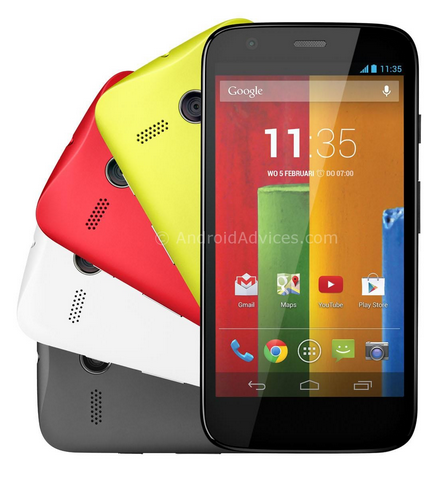
Backup & restore
Your Google account data is backed up online. If you reset or replace your phone, just log in to your Google account to restore the contacts, events, and other details you synced with the account. To choose what syncs with the account, touch Apps > Settings > Google, touch your Google account, and check things to sync. Please note that text messages, call logs, and items stored on your phone will not be restored. To restore your Google Play™ Store apps, see “Take care of your apps”.
Resetting Motorola Moto G on Settings:
Warning: All downloaded apps and user data on your phone will be deleted. Data on the cloud will not be deleted.
Your Google account data is backed up online. If you reset or replace your phone, just log in to your Google account to restore the contacts, events, and other details you synced with the account. To choose what syncs with the account, touch Apps > Settings > Google, touch your Google account, and check things to sync. Please note that text messages, call logs, and items stored on your phone will not be restored. To restore your Google Play™ Store apps, see “Take care of your apps”.
Resetting Motorola Moto G on Settings:
- On your Home Lcd, touch Apps.
- Go to Settings > Privacy.
- Tap on Factory Data Reset.
- Then tap Reset phone.
- And Erase everything to confirm the reset.
Warning: All downloaded apps and user data on your phone will be deleted. Data on the cloud will not be deleted.
How to Hard Reset Motorola Moto G:
These steps is also helpful when your Motorola Moto G is unresponsive or frozen and theres no way to access the settings. If it is frozen, remove the battery and reinsert it after a few minutes.
- Power up the device pressing both Volume UP and Down keys at the same time. Use the Volume down key to highlight recovery mode and volume up to select it.
- When in recovery mode, you will see an android with a red triangle. Press Volume up and Volume down at the same time. This will bring up a blue menu at the top of the Lcd.
- Press Volume down to select "wipe data/factory reset" and press the Power key to select it.
- Now press Volume down to highlight Yes and press power to select it.
- Finally, when the device finishes it will have "reboot system now" selected. Just press power to select that option.
Monday, September 8, 2014
Sony Xperia TL LT30at Factory data reset
- select Apps from home Lcd or press Menu Key
- select Settings
- select Backup & reset
- select Factory data reset
- select Reset phone
- select Erase everything
To avoid permanent damage to your device, do not restart your device while a reset procedure is underway.
Warning! All data will be erased from device memory, including system and application data, settings and downloaded applications. Back up your important data. The device will restore to factory settings.
Performing Soft Reset
If your phone or tab hangs or does not responding, try to Press and hold the power and volume up keys for 5 seconds. After the phone vibrates once, release the keys. The phone will restart automatically.
Monday, September 1, 2014
Sony Xperia L C2105 Flash Repair Done With Factory Firmware
Sony Xperia L ( C2105 ) Flash Repair Done With Factory Firmware
Here Flash Log:-
Tested By Me
Here Flasher Link:-
Flashtool-0.9.11.0-windows
Here Firmware Link:-
Sony Xperia L (C2105)_15.3.A.0.26_Philippines.part1
Sony Xperia L (C2105)_15.3.A.0.26_Philippines.part2
Or
C2105_15.0.A.2.17_PT. TELETAMA ARTHA MANDIRI.part1
C2105_15.0.A.2.17_PT. TELETAMA ARTHA MANDIRI.part2
Read More..

Here Flash Log:-
Code:
16/033/2013 12:33:42 - INFO - <- This level is successfully initialized
16/033/2013 12:33:42 - INFO - Flashtool Version 0.9.11.0 built on 2013-06-04 22:50:00
16/033/2013 12:33:42 - INFO - Device disconnected
16/034/2013 12:34:39 - INFO - Selected Sony Xperia L (C2105) / 15.3.A.0.26 / Philippines
16/034/2013 12:34:39 - INFO - Preparing files for flashing
16/034/2013 12:34:53 - INFO - Please connect your device into flashmode.
16/035/2013 12:35:53 - INFO - Device connected in flash mode
16/035/2013 12:35:54 - INFO - Opening device for R/W
16/035/2013 12:35:54 - INFO - Reading device information
16/035/2013 12:35:54 - INFO - Phone ready for flashmode operations.
16/035/2013 12:35:54 - INFO - Current device : C2105 - ZH8000Z963 - 1271-3303_R5A - 1269-5420_15.0.A.1.36 - WORLD-i_15.0.A.1.36
16/035/2013 12:35:54 - INFO - Start Flashing
16/035/2013 12:35:54 - INFO - Processing loader
16/035/2013 12:35:54 - INFO - Checking header
16/035/2013 12:35:54 - INFO - Flashing data
16/035/2013 12:35:54 - INFO - Loader : S1_Root_dbe9 - Version : loader_MSM8X30_10 / Bootloader status : ROOTABLE
16/035/2013 12:35:54 - INFO - Processing partition-image.sin
16/035/2013 12:35:54 - INFO - Checking header
16/035/2013 12:35:54 - INFO - Flashing data
16/035/2013 12:35:54 - INFO - Processing kernel.sin
16/035/2013 12:35:54 - INFO - Checking header
16/035/2013 12:35:54 - INFO - Flashing data
16/035/2013 12:35:56 - INFO - Processing fotakernel.sin
16/035/2013 12:35:56 - INFO - Checking header
16/035/2013 12:35:56 - INFO - Flashing data
16/035/2013 12:35:57 - INFO - Processing modem.sin
16/035/2013 12:35:57 - INFO - Checking header
16/035/2013 12:35:57 - INFO - Flashing data
16/036/2013 12:36:05 - INFO - Processing rpm.sin
16/036/2013 12:36:05 - INFO - Checking header
16/036/2013 12:36:05 - INFO - Flashing data
16/036/2013 12:36:05 - INFO - Processing ftma.sin
16/036/2013 12:36:05 - INFO - Checking header
16/036/2013 12:36:05 - INFO - Flashing data
16/036/2013 12:36:06 - INFO - Processing ramdumper.sin
16/036/2013 12:36:06 - INFO - Checking header
16/036/2013 12:36:06 - INFO - Flashing data
16/036/2013 12:36:06 - INFO - Processing cache.sin
16/036/2013 12:36:06 - INFO - Checking header
16/036/2013 12:36:06 - INFO - Flashing data
16/036/2013 12:36:07 - INFO - Processing system.sin
16/036/2013 12:36:07 - INFO - Checking header
16/036/2013 12:36:07 - INFO - Flashing data
16/038/2013 12:38:49 - INFO - Processing userdata.sin
16/038/2013 12:38:49 - INFO - Checking header
16/038/2013 12:38:49 - INFO - Flashing data
16/038/2013 12:38:54 - INFO - Ending flash session
16/038/2013 12:38:54 - INFO - Flashing finished.
16/038/2013 12:38:54 - INFO - Please unplug and start your phone
16/038/2013 12:38:54 - INFO - For flashtool, Unknown Sources and Debugging must be checked in phone settings
16/038/2013 12:38:54 - INFO - Device connected in flash mode
16/039/2013 12:39:13 - INFO - Device disconnected
16/039/2013 12:39:57 - INFO - Device connected in flash mode
16/040/2013 12:40:38 - INFO - Please connect your device into flashmode.
16/040/2013 12:40:39 - INFO - Opening device for R/W
16/040/2013 12:40:39 - INFO - Device connected in flash mode
16/040/2013 12:40:39 - INFO - Reading device information
16/040/2013 12:40:39 - INFO - Phone ready for flashmode operations.
16/040/2013 12:40:39 - INFO - Current device : C2105 - ZH8000Z963 - 1271-3303_R5A - 1269-5420_15.0.A.1.36 - WORLD-i_15.0.A.1.36
16/040/2013 12:40:39 - INFO - Processing loader
16/040/2013 12:40:39 - INFO - Checking header
16/040/2013 12:40:39 - INFO - Flashing data
16/040/2013 12:40:40 - INFO - Loader : S1_Root_dbe9 - Version : loader_MSM8X30_10 / Bootloader status : ROOTABLE
16/040/2013 12:40:40 - INFO - Start Reading unit 000008B2
16/040/2013 12:40:40 - INFO - Reading TA finished.
Tested By Me
Here Flasher Link:-
Flashtool-0.9.11.0-windows
Here Firmware Link:-
Sony Xperia L (C2105)_15.3.A.0.26_Philippines.part1
Sony Xperia L (C2105)_15.3.A.0.26_Philippines.part2
Or
C2105_15.0.A.2.17_PT. TELETAMA ARTHA MANDIRI.part1
C2105_15.0.A.2.17_PT. TELETAMA ARTHA MANDIRI.part2
Friday, August 22, 2014
Factory Data Reset Samsung Galaxy S Plus I9001 to Restore OriginalValues
Factory Data Reset Samsung Galaxy S Plus I9001 to Restore Original Values - The Samsung Galaxy S and I9001 is AN increased version of the favored Galaxy S, with a quicker processor (1.4 rate Scorpion CPU), a more consistent and powerful battery and therefore the latest version of android OS, "Gingerbread" v2.3. Samsung Galaxy S and I9001 contains a distinctive bit screen 4-inch "Super AMOLED," providing a brightness and a distinction quantitative relation of exception, 720p HD video, Wi-Fi, AN A-GPS and Bluetooth 3. On the rear aspect, you’ll realize 5 MP camera with optical device, Geo-tagging, bit focus, face and smile detection, and video capability (720p@30fps). Front facing VGA camera conjointly out there for video line. The Samsung Galaxy S and is set its name.

Factory Data Reset Samsung Galaxy S Plus I9001 to Restore Original Values
How to Reset Samsung Galaxy S Plus I9001?
Hard Reset Samsung Galaxy S Plus I9001
Hard Reset Samsung Galaxy S Plus I9001
If your device freezes or hangs, you may need to close programs or reset the device to regain functionality. If your device is frozen and unresponsive, press and hold for 8-10 seconds. The device will reboot automatically. If this does not solve the problem, perform a factory data reset.
To factory data reset your Samsung Galaxy S Plus I9001 do the following steps:
In Idle mode, open the application list and select Settings → Privacy → Factory data reset → Reset phone → Erase everything.
Caution: Be sure to back up important data. Samsung is not responsible for data loss.
Monday, August 18, 2014
Sony Xperia tipo ST21i ST21A factory data reset
| Sony Xperia tipo ST21i/ST21A factory data reset |
Performing factory data reset ( master reset or hard reset ) Sony Xperia tipo ST21i/ST21A via Settings menu:
Performing factory data reset
- Tap Applications from Home screen
- Tap Settings
- Tap Backup & reset
- Tap Factory data reset
- Tap Reset phone
- Tap Erase Everything
Warning! All data will be erased from device memory, including system and application data, settings and downloaded applications. Back up your important data. The device will restore to factory settings.
If your phone hangs or does not responding, Press and hold power key about 10 seconds. It will rebooting automatically. Or remove and re insert the battery and SIM Card.
Monday, August 11, 2014
Factory Reset Samsung Galaxy Appeal I827 to Restore Default Settings
Factory Reset Samsung Galaxy Appeal I827 to Restore Default Settings - Samsung Galaxy appeal I827 is powered by an 800 mhz Cortex-A5 CPU in combined with Adreno 200 GPU and Qualcomm MSM7225A flower Chipset. The smartphone comes with 3.2 inches (~180 ppi constituent density), 320 x 480 pixels electrical phenomenon touchscreen show. It runs android OS, v2.3 (Gingerbread) OS that options several applications (free and charged). youll be able to save your knowledge on 4 GB internal storage (512 MB RAM, 1.8 GB ROM) or external microSD card (up to 32 GB).

Factory Reset Samsung Galaxy Appeal I827 to Restore Default Settings
How to reset Samsung Galaxy Appeal I827?
Restore Samsung Galaxy Appeal I827 Factory Default Settings
Restore Samsung Galaxy Appeal I827 Factory Default Settings
Warning!!! Performing a Factory data reset will erase all data your Samsung Galaxy Appeal I827 phone memory and internal SD card, including contact, messages, images, video file, your Google account, system and application data and settings, and downloaded applications. It will not erase current system software, bundled applications, and external SD card files such as music and photos unless you check the Format USB storage checkbox.
To factory reset your device:
- From the Home screen, tap
➔ Settings ➔ Privacy.
- Tap Factory data reset.
- If you want to erase all data on your USB storage, such as music and photos, tap the Format USB storage checkbox to create a green checkmark.
- Tap Reset phone.
- At the confirmation screen, tap Erase everything. The phone resets to the factory default settings automatically and when finished, displays the Home
screen.

Subscribe to:
Posts (Atom)