Showing posts with label motorola. Show all posts
Showing posts with label motorola. Show all posts
Wednesday, January 7, 2015


Wednesday, October 15, 2014
How to Factory Reset Hard Reset Motorola Moto G
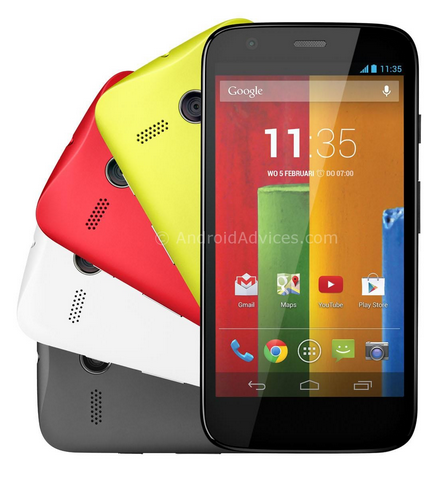
Backup & restore
Your Google account data is backed up online. If you reset or replace your phone, just log in to your Google account to restore the contacts, events, and other details you synced with the account. To choose what syncs with the account, touch Apps > Settings > Google, touch your Google account, and check things to sync. Please note that text messages, call logs, and items stored on your phone will not be restored. To restore your Google Play™ Store apps, see “Take care of your apps”.
Resetting Motorola Moto G on Settings:
Warning: All downloaded apps and user data on your phone will be deleted. Data on the cloud will not be deleted.
Your Google account data is backed up online. If you reset or replace your phone, just log in to your Google account to restore the contacts, events, and other details you synced with the account. To choose what syncs with the account, touch Apps > Settings > Google, touch your Google account, and check things to sync. Please note that text messages, call logs, and items stored on your phone will not be restored. To restore your Google Play™ Store apps, see “Take care of your apps”.
Resetting Motorola Moto G on Settings:
- On your Home Lcd, touch Apps.
- Go to Settings > Privacy.
- Tap on Factory Data Reset.
- Then tap Reset phone.
- And Erase everything to confirm the reset.
Warning: All downloaded apps and user data on your phone will be deleted. Data on the cloud will not be deleted.
How to Hard Reset Motorola Moto G:
These steps is also helpful when your Motorola Moto G is unresponsive or frozen and theres no way to access the settings. If it is frozen, remove the battery and reinsert it after a few minutes.
- Power up the device pressing both Volume UP and Down keys at the same time. Use the Volume down key to highlight recovery mode and volume up to select it.
- When in recovery mode, you will see an android with a red triangle. Press Volume up and Volume down at the same time. This will bring up a blue menu at the top of the Lcd.
- Press Volume down to select "wipe data/factory reset" and press the Power key to select it.
- Now press Volume down to highlight Yes and press power to select it.
- Finally, when the device finishes it will have "reboot system now" selected. Just press power to select that option.
Friday, August 29, 2014
How To Easy Root and Unroot Motorola Droid X Easiest Method
How To Root or Unroot Motorola Droid X

- Charge your device upto 70% level.
- Make a backup of data for safety.
- Enable USB Debugging in your device.Click Here if you dont know how to enable.
Download Required Files:
How To Root Motorola Droid X:
- Download Framaroot.apk app in you device.
- Install Framaroot.apk app in your device.(If you see an error, Go to Setting>Applications and enable Unknown Sources their and then try to install again).
- Launch framaroot app in your device.
- Now you will see some exploits in app.
- Select GANDALF Exploit from them.
- Application will automatically start rooting your device.
- It will take only few seconds and then restart your device.
- Your Motorola Droid X is successfully rooted now...
How To Unroot Motorola Droid X: - Download Framaroot.apk app in you device.
- Install Framaroot.apk app in your device.(If you see an error, Go to Setting>Applications and enable Unknown Sources their and then try to install again).
- Launch framaroot app in your device.
- Select Unroot from option.
- Then select GANDALF Exploit from the list of exploits.
- The Application will automatically Unroot your device.
- It take few seconds only then restart your device.
- Motorola Droid X is unrooted now...
Thanks for visiting....Dont forgot to share & follow us on Social media..
Subscribe to:
Posts (Atom)