Wednesday, October 15, 2014
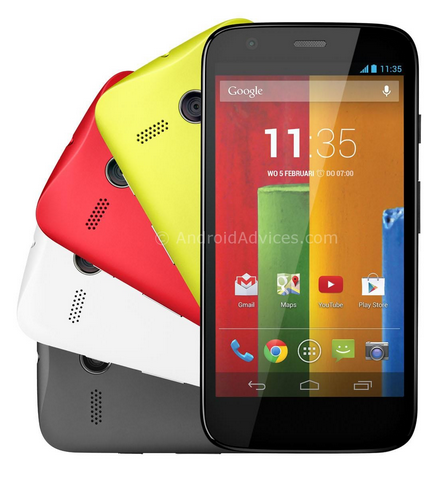
How to Factory Reset Hard Reset Motorola Moto G
Backup & restore
Your Google account data is backed up online. If you reset or replace your phone, just log in to your Google account to restore the contacts, events, and other details you synced with the account. To choose what syncs with the account, touch Apps > Settings > Google, touch your Google account, and check things to sync. Please note that text messages, call logs, and items stored on your phone will not be restored. To restore your Google Play™ Store apps, see “Take care of your apps”.
Resetting Motorola Moto G on Settings:
Warning: All downloaded apps and user data on your phone will be deleted. Data on the cloud will not be deleted.
Your Google account data is backed up online. If you reset or replace your phone, just log in to your Google account to restore the contacts, events, and other details you synced with the account. To choose what syncs with the account, touch Apps > Settings > Google, touch your Google account, and check things to sync. Please note that text messages, call logs, and items stored on your phone will not be restored. To restore your Google Play™ Store apps, see “Take care of your apps”.
Resetting Motorola Moto G on Settings:
- On your Home Lcd, touch Apps.
- Go to Settings > Privacy.
- Tap on Factory Data Reset.
- Then tap Reset phone.
- And Erase everything to confirm the reset.
Warning: All downloaded apps and user data on your phone will be deleted. Data on the cloud will not be deleted.
How to Hard Reset Motorola Moto G:
These steps is also helpful when your Motorola Moto G is unresponsive or frozen and theres no way to access the settings. If it is frozen, remove the battery and reinsert it after a few minutes.
- Power up the device pressing both Volume UP and Down keys at the same time. Use the Volume down key to highlight recovery mode and volume up to select it.
- When in recovery mode, you will see an android with a red triangle. Press Volume up and Volume down at the same time. This will bring up a blue menu at the top of the Lcd.
- Press Volume down to select "wipe data/factory reset" and press the Power key to select it.
- Now press Volume down to highlight Yes and press power to select it.
- Finally, when the device finishes it will have "reboot system now" selected. Just press power to select that option.


Tuesday, October 14, 2014
Local mode problem test mode problem some general facts
What is local mode?
Local mode is triggered either by a service battery / jig from Nokia being used to power the phone,
A faulty battery, a faulty phone or the phone has got "liquid ingress” also indicate local mode in display
See this picture
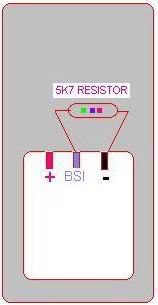 in the above picture when BSI is grounded with a resistor of
5.1k to 7k1 and insert battery, nokia sets displays local/test mode on Lcd
By this way we can trigger the set in to local mode and software operation through USB
Local mode is triggered for reading & writing phone pm area (EEPROM),
File system formatting etc.
What is test mode?
Test mode is for doing file system removing like full factory defaults
Also can do pm area re-writing and for unlocking the phone
Some phones displays either of these modes directly when battery is inserted to the phone
and we gets in this condition for repairing
This may be either by a faulty battery or damaged hardware in the handset.
We can assume this is a BSI related fault
TEST THE PHONE WITH A WORKING BATTERY
Now what is BSI?
BSI, the thermistor used to sense the battery temperature and shut down the charger
Their is an internal circuit from power IC to BSI lead of battery
this circuit manages charging mechanism and battery sensing.
 Faulty parts in this BSI circuit may lead to the local/test mode
Or finally we have to suspect power ic
Here NOKIA 1200 schematic is used to illustrate BSI way and possible reasons for this fault.

 blue colored parts are related to the BSI function .we have to trace from battery connector, capacitors, and then other parts. These parts can be identified by reading the higher level schematic of the phone. By following this logic you may be able to trace local mode in any nokia phone
Read More..
Local mode is triggered either by a service battery / jig from Nokia being used to power the phone,
A faulty battery, a faulty phone or the phone has got "liquid ingress” also indicate local mode in display
See this picture
5.1k to 7k1 and insert battery, nokia sets displays local/test mode on Lcd
By this way we can trigger the set in to local mode and software operation through USB
Local mode is triggered for reading & writing phone pm area (EEPROM),
File system formatting etc.
What is test mode?
Test mode is for doing file system removing like full factory defaults
Also can do pm area re-writing and for unlocking the phone
Some phones displays either of these modes directly when battery is inserted to the phone
and we gets in this condition for repairing
This may be either by a faulty battery or damaged hardware in the handset.
We can assume this is a BSI related fault
TEST THE PHONE WITH A WORKING BATTERY
Now what is BSI?
BSI, the thermistor used to sense the battery temperature and shut down the charger
Their is an internal circuit from power IC to BSI lead of battery
this circuit manages charging mechanism and battery sensing.
Or finally we have to suspect power ic
Here NOKIA 1200 schematic is used to illustrate BSI way and possible reasons for this fault.

Monday, October 13, 2014
Nokia X2 00 Ringer solution
Nokia X2-00 Ringer solution
Nokia X2-00 ringer solution without ic.
How to repair Ringer Ic Nokia X2-00.Ringer ic Shorting Methods.
how to make jumper ringer buzzer ic in Nokia X2-00.
make jumper like diagram and the problem will be solved.

nokia X2-00 light ic jumper
nokia X2-00 ringer problem
nokia X2-00 ringer solution
nokia X2-00 ringer ic jumper
nokia X2-00 ringer jumper
X2-00 ringer ic jumper
X2-00 light ic jumper
X2-00 ringer problem
X2-00 ringer solution
nokia X2-00 ringer problem solution
Nokia X2-00 ringer solution without ic.
How to repair Ringer Ic Nokia X2-00.Ringer ic Shorting Methods.
how to make jumper ringer buzzer ic in Nokia X2-00.
make jumper like diagram and the problem will be solved.
nokia X2-00 light ic jumper
nokia X2-00 ringer problem
nokia X2-00 ringer solution
nokia X2-00 ringer ic jumper
nokia X2-00 ringer jumper
X2-00 ringer ic jumper
X2-00 light ic jumper
X2-00 ringer problem
X2-00 ringer solution
nokia X2-00 ringer problem solution
Thursday, October 2, 2014
Asansam box Version 2 4 1 Released Fix Server Reply Unknown!
Asansam box Version 2.4.1 Released
Fix
Server Reply Unknown Error
After Press On Go Support File Button
Before Fix
![Asansam]()
After Fix
Download
--------------------------
ASANSAM_rev2.4.1.rar
----------------------
Copy and extract to c:/asansam2
Just For Warm UP
BR
ASANGSM TEAM
Read More..
Fix
Server Reply Unknown Error
After Press On Go Support File Button
Before Fix
Quote:
| Generating Link... OK Server Reply Unknown! |
After Fix
Quote:
| Generating Link... OK Sending Link to Browser...OK |
Download
--------------------------
ASANSAM_rev2.4.1.rar
----------------------
Copy and extract to c:/asansam2
Just For Warm UP
BR
ASANGSM TEAM
Wednesday, October 1, 2014

Subscribe to:
Posts (Atom)